Muse Isn't on Your Glasses Yet? The Rollout, Explained
Quick answer
Muse on AI glasses is a beta that is switched on account by account. To check, open the Meta AI app and go to Glasses, Device settings, AI assistant. If you see Muse there, you have it. If the option is missing, the beta has not reached your account, and there is no official way to force it.
You read that Muse is on Meta’s glasses. You opened the app. Nothing. You are not doing it wrong.
How to check in 20 seconds
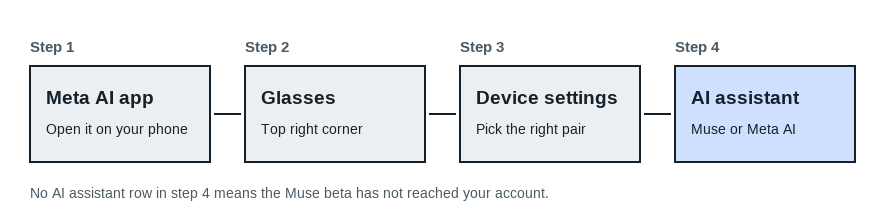
- Open the Meta AI app on your phone.
- Tap Glasses in the top right.
- Tap Device settings. If you have more than one pair, swipe to the right one first.
- Tap AI assistant.
- If Muse is listed, select it. Done.
These are the steps on Meta’s own help page. If step 4 shows no Muse choice, your account is not in the beta yet.
Why you don’t have it
Meta has been careful with its wording. At Connect on September 23, 2026, it said Muse would come to AI glasses “in the coming months.” The help page calls the feature a beta, says features are still changing, and says the beta may end at any time.
What Meta has not published:
- A start date for the beta
- Which glasses models are included
- Which countries are included
- When everyone gets it
One third-party blog reports that the beta opened on October 27, 2026 and is being staged through November. We have not been able to confirm that with a Meta source, so treat it as a report.
The pattern matches how Meta ships most glasses features. Access is tied to your account, not to the pair of glasses you bought. Two people with the same frames and the same firmware can see different settings.
What you need before it can show up
Meta’s help page lists two requirements:
- The Meta AI app, for pairing, settings, firmware and your photos and videos
- The Muse app, for your conversations with Muse
Install both and sign in to both. Keep the Meta AI app and your glasses firmware up to date.
What doesn’t work
We have seen advice to factory reset your glasses, reinstall the app, or join other betas to trigger the option. Meta does not document any of those as a way in. A reset costs you your settings and gets you nothing we can verify.
If you don’t know, we say we don’t know. We don’t know of a way to jump the line.
While you wait
- Use Muse in the Muse app, on the web, or in WhatsApp. It is the same agent.
- Watch the Rollout Tracker. It gets checked daily and stamped with the date.
- Read what changes when you switch, because Muse on glasses still has gaps you may care about.
FAQ
How do I know if I have Muse on my Meta glasses?
Open the Meta AI app, tap Glasses, tap Device settings, then AI assistant. If Muse is listed as a choice, you have it.
Can I force Muse onto my glasses?
Not by any method Meta documents. The beta is switched on per account. Resetting the glasses or reinstalling the app is not a documented way to get it.
Do I need the Muse app as well as the Meta AI app?
Yes. Meta says you need the Meta AI app for pairing, settings and firmware, and the Muse app for your conversations with Muse.
When will everyone get Muse on glasses?
Meta has not given a date. At Connect in September 2026 it said “in the coming months.”
Sources
- Meta help, How to use Muse on your AI glasses (Beta), read November 22, 2026
- Meta Newsroom, The Biggest News From Connect 2026, September 24, 2026
- VR Wave blog, Gemini vs Meta AI on Smart Glasses, unconfirmed report of the October 27 start, read November 22, 2026

Get told when this changes
One email when something real changes: a rollout step, a fix, a price. Written from devices we own.