Muse vs Meta AI on Glasses: What Changes When You Switch
Quick answer
Switching your glasses to Muse gives you an agent that can take on tasks hands-free and answer questions about what you are looking at. During the beta you lose some music, calling, messaging and navigation features, which still need Meta AI. You can switch back in the Meta AI app at any time, and only one assistant runs at once.
Your glasses can run one assistant at a time. Here is what the choice costs you today.
The short comparison
| Muse (beta) | Meta AI | |
|---|---|---|
| Hand off tasks hands-free | Yes | Limited to assistant features |
| Ask about what you are looking at | Yes | Yes |
| Music | Some experiences not supported yet | Supported |
| Calling and messaging | Some experiences not supported yet | Supported |
| Navigation | Some experiences not supported yet | Supported |
| Wake word | “Hey Meta,” plus “Hey Muse” or a custom name on some models | “Hey Meta” |
| Apps needed | Meta AI app and Muse app | Meta AI app |
| Connected services | Set up in the Muse app | Set up in the Meta AI app |
The Muse column comes from Meta’s beta help page, read November 22, 2026. Meta does not list exactly which music, calling or navigation features are missing. It says “some.”
What you gain with Muse
Meta’s help page describes three things Muse does on glasses:
- Hand off tasks hands-free. You talk, it works.
- Ask about what is in front of you. Muse can use the camera.
- Call it by a name you choose. On supported models you can set and record a custom name.
At Connect, Meta also described a voice mode built for long conversations while Muse works on other things in the background.
If you already use Muse on your phone, this is the same agent. For what that looks like across a real workday, see Living With Muse.
What you lose during the beta
Meta says some music, calling and messaging, and navigation experiences are not supported with Muse yet. Its instruction is plain: switch back to Meta AI to use them.
So if you rely on your glasses for directions on a walk or for calls in the car, think before you switch. Or switch back for the trip.
Two apps, two sets of permissions
This is the part that surprises people. The Muse app and the Meta AI app do not share connections. If you connected a service to Meta AI, Muse does not have it. Each app asks for its own permission.
Your voice data is handled differently too. With Muse active, Meta says recordings and transcripts fall under the Muse Privacy Policy. Switch back and they fall under Meta’s glasses voice policies.
Usage limits
Muse is free with a usage limit, and paid plans raise it. Meta says beta participants get more usage during the beta period. Details show up in the Muse app after setup.
How to switch, and switch back
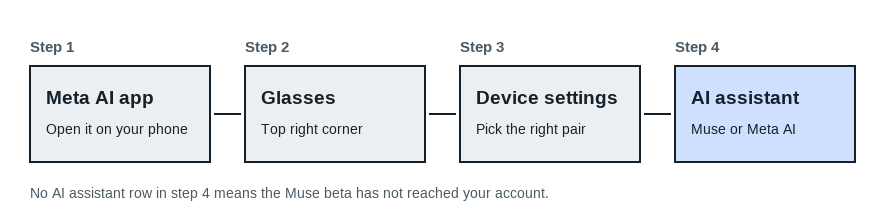
- In the Meta AI app, tap Glasses in the top right.
- Tap Device settings.
- Tap AI assistant.
- Select Muse or Meta AI.
If you don’t see the option, the beta has not reached your account. The Rollout Tracker shows the current state of each gap.
Which should you use?
Use Muse if you want to delegate. Use Meta AI if you need music, calls and directions to work every time. Many people will switch between them until the gaps close, and that is a reasonable way to run it.
FAQ
Can I use Muse and Meta AI on my glasses at the same time?
No. Only one assistant is active at a time. You choose in the Meta AI app under Glasses, Device settings, AI assistant.
What doesn’t work with Muse on glasses?
Meta says some music, calling and messaging, and navigation experiences are not supported during the beta. Switch back to Meta AI to use them.
Does Muse on glasses cost money?
Muse is free with a usage limit. Subscription plans offer more usage, and Meta says beta participants get extra usage during the beta.
Do my Meta AI connections carry over to Muse?
No. Meta says connecting an app or service in one does not connect it in the other.
Sources
- Meta help, How to use Muse on your AI glasses (Beta), read November 22, 2026
- Meta Newsroom, The Biggest News From Connect 2026, September 24, 2026

Get told when this changes
One email when something real changes: a rollout step, a fix, a price. Written from devices we own.